

Learn how to auto update apps on Android on the Google Play Store. Also see how to keep your apps secure, up to date, and running smoothly with auto updates.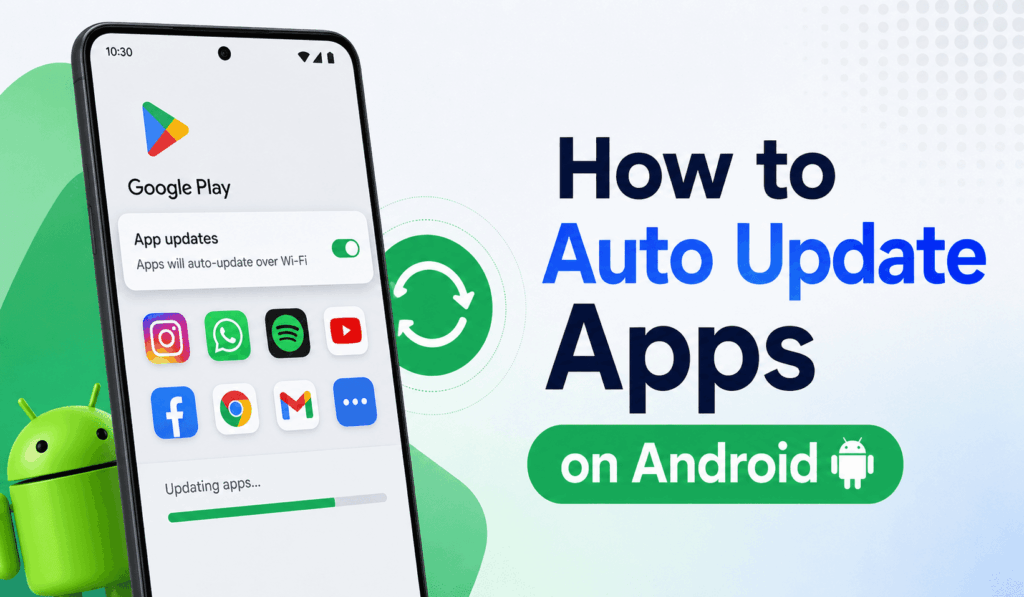

How to Auto Update Apps on Android?
Keeping your smartphone apps up to date is a must for security, performance, and access to new features. Also, on Android, we have made it simple to Auto Update Apps, which means you no longer have to download updates manually each time a new one is released. Once you turn on the auto update feature for apps on Android, your apps will stay current and run smoothly.
Many Android users go for Auto Update Apps, which they see as a way to save time and also get important bug fixes and security patches right away. As for which apps they are, social media, banking, gaming, or productivity, enabling Auto Update for all of them is what helps to maintain the best user experience.
Read More: Top 10 Deepfake Apps Complete Details
Why Auto Update Apps on Android?
When it comes to App update apps on Android, there are many benefits that you see. For one, we see that updates include security improvements, which in turn protect your personal info. Also, developers are introducing new features that improve app performance. And finally, automatic updates also fix issues like crashes and performance, which is a plus.
By enabling Auto Update of Apps on Android, you are at reduced risk of using out-of-date software. This is especially true for apps that handle sensitive info like online banking, email, and payment apps.
Read More: Top 10 Best App Lock Apps for Android and iPhone
Steps to Auto Update Apps on Android
Follow these steps to Auto Update Apps on Android:
- Open the Google Play Store on Your Android Phone
- Tap the icon in the top right.
- Go to Settings.
- Click “Network Preferences.
- Select “Auto-update apps.
- Select what is put forth as an option:
Over any network
Over Wi-Fi only
Don’t auto-update apps
- Select your choice of setting and tap “Done.
Once enabled, your device will update Apps on Android, which is based on your set network preference.
Read More: How to Stop Apps Running in Background on Android
Auto Update Apps on Android Over WiFi
Many of our users set their devices to update apps only via Wi-Fi. This feature saves mobile data, which in turn leaves your mobile data for other uses. If you have a limited mobile data plan, choose Wi-Fi only updates.
When you connect to a trusted Wi-Fi network, your apps will automatically update on Android behind the scenes, and you do not have to check for updates daily.
Troubleshooting Auto Update Apps on Android
Sometimes, the Auto Update Apps feature on Android does not work properly. If it does not work for you, try this:
- Have a reliable internet connection.
- Check that automatic updates are turned on in the Play Store settings.
- Check that you have enough storage space.
- Update the Google Play Store when necessary.
- Restart your Android device.
These basic troubleshooting steps can solve most issues related to Auto Update Apps on Android.
Conclusion
Learning to set up Auto Update Apps on Android is a basic way to secure and speed up your device. By turning on the auto update feature, you ensure that all of your favorite apps get the latest updates, which you don’t have to do manually. Also, you may choose between updating via Wi-Fi only or any network. With Auto Update Apps on Android, we put convenience right at the core for all Android users.