

Learn how to enable Show CPU Usage in Developer Options on Android for real-time performance of your CPU, to debug issues, and see which apps are using what resources.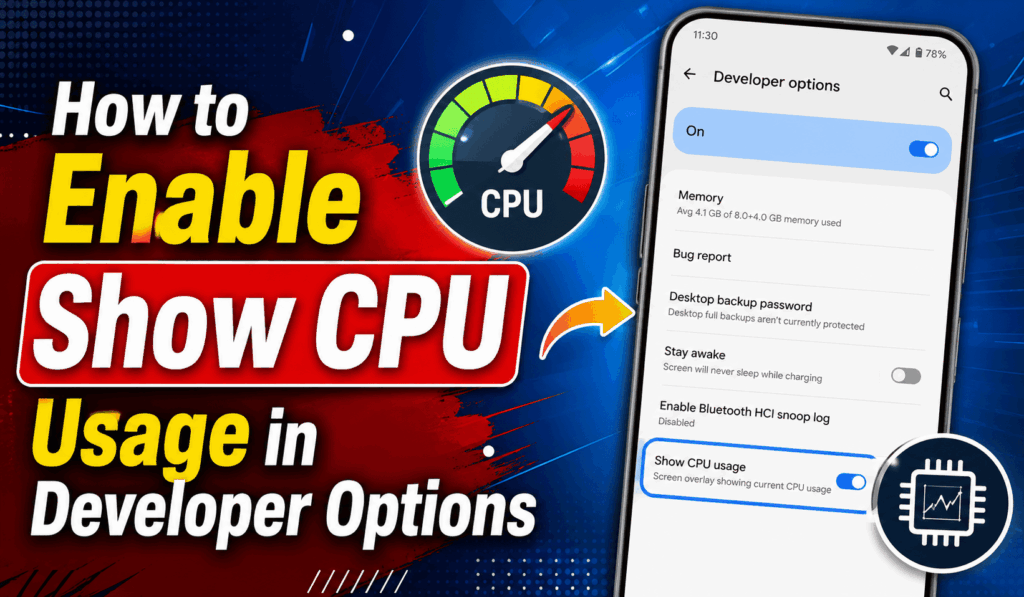

How to Enable Show CPU Usage in Developer Options
If you want to keep an eye on your device’s performance in real time, showing CPU Usage in Developer Options is a very useful Android feature. This built-in setting, which reports the present CPU load as it happens, may be what you are looking for. Whether you are a developer, a gamer, or just someone who is into what makes their phone tick, that’s what this feature.
Read More: How to Enable Developer Options Android lollipop, Marshmallow, Nougat, and Oreo
What is Show CPU Usage in Developer Options?
The Show CPU Usage in Developer Options reports CPU info as a live display on your Android screen. What you see is which apps and background services are at any given time using the most power. Thus, it is easy to tell which apps may be causing your device to slow down or which are heavy resource users.
Unlike third-party monitoring apps, which are separate entities, Show CPU Usage in Developer Options is a feature that is included in Android, which is also very lightweight, reliable, and easy to access.
Read More: How to Make Android Faster with Developer Options Without Root
Steps to Enable Show CPU Usage in Developer Options
Here are the steps to turn on Show CPU Usage in Developer Options:
- Open Settings on your Android.
- Scroll down to it and tap About Phone.
- Tap on the Build Number seven times to unlock Developer Options.
- Enter your device code when asked.
- Go back to the main Settings.
- Enable Developer Options.
- Scroll down until you find Show CPU Usage.
- Turn on CPU Usage in Developer Options,
Once you enable it, a small overlay appears that shows live CPU activity and process info.
Read More: How to Limit Background Processes on Android
Benefits of Show CPU Usage in Developer Options
Using Developer Options to see your CPU usage reports also has many benefits:
- Watch CPU performance in real time.
- Identify which apps are using too much processing power.
- Troubleshoot slow device performance.
- Test app efficiency during development.
- Understand what is going on behind the scenes with your phone.
Many developers of Android apps use the Show CPU Usage option in Developer Options while they are testing applications, which in turn gives them immediate feedback on performance.
Read More: How to Turn on Predictive Back Animations on Android
When Should You Use Show CPU Usage in Developer Options?
The Display of CPU Usage in Developer Options, which in turn is useful for:
- Your phone’s performance is slow, or it is unresponsive.
- You notice unusual battery drain.
- Apps crash frequently.
- You are using a recently developed application.
- You want to monitor how your game is performing.
Monitoring your CPU activity is a way to see if an application is putting too much strain on your device.
Can You Disable Show CPU Usage in Developer Options?
Yes. When you no longer have use for the CPU overlay, go into Developer Options and turn off Show CPU Usage. The overlay goes away right away, which returns your view to normal without affecting device performance.
Conclusion
The Show CPU Usage in Developer Options is a great tool for all who pay attention to Android performance. It allows you to see which applications are running on your device’s processor, to identify what may be causing delays, and in what way. Also, because these features are included with Android, you do not have to download anything extra to get it up and running. For both the professional developer and the at-home user.