

Learn how to change system navigation buttons on Android. Between gesture and 3-button navigation, which you can customize, we’ve also included troubleshooting for navigation issues.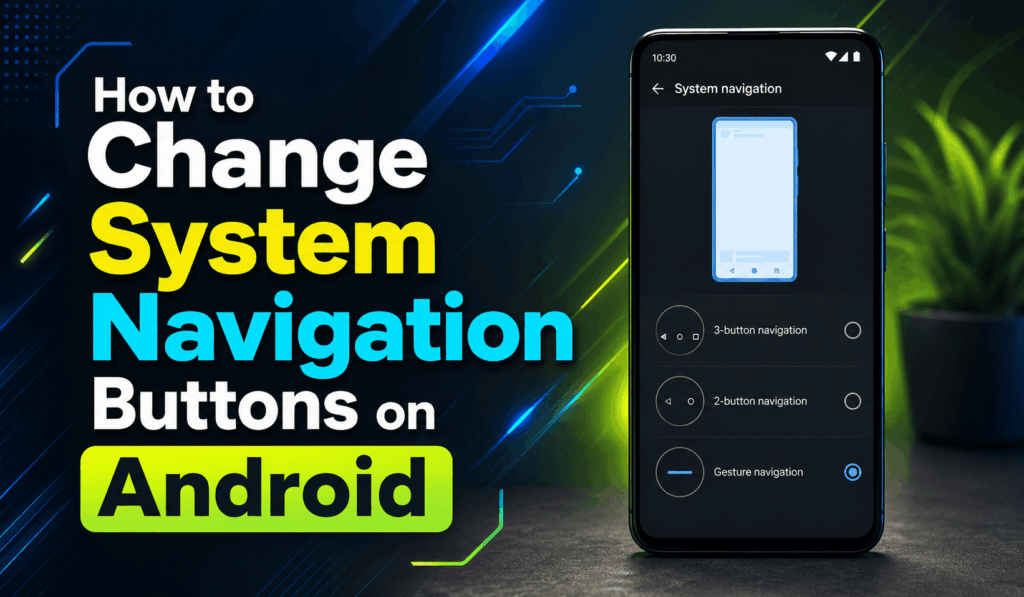

How to Change System Navigation Buttons on Android
If you wish to change System Navigation Buttons on Android, you are not the only one. Many Android users go for a custom phone’s navigation style for better comfort and productivity. Whether you want to trade in your gesture navigation for the classic three-button layout or just fine-tune your navigation settings.
Read More: What is Android System Intelligence
Why Change System Navigation Buttons on Android?
There is a variety of reasons which lead users to change System Navigation Buttons on Android. We see that some people have trouble with gesture navigation, others prefer the classic Back, Home, and Recent Apps buttons. Also, changing out the navigation buttons improves accessibility, enables better one-handed use, and in general improves the user experience.
When you change System Navigation Buttons on Android, you get to see which:
- Easier navigation for new Android users.
- Quicker access to the Home, Back, and Recent Apps buttons.
- Improved performance for games and multitaskers.
- Improved access for those who prefer physical navigation.
Read More: How to Change TalkBack Settings on Android
Steps to Change Navigation Buttons in Android
Here are simple steps to Change System Navigation Buttons on Android:
- Open Settings on your Android device.
- Scroll down to see System or Display options, which may vary by phone model.
- Choose Gestures or Navigation System.
- Press System Navigation.
- Choose from Gesture Navigation, 3-Button Navigation, or 2-Button Navigation if they are present.
- Confirm your choice and go back to the home screen.
After which your phone will at once Change System Navigation Buttons on Android to what you prefer.
Read More: How to Change Keyboard on Android
Customize Navigation Buttons
At the moment, what we see is that manufacturers like Samsung, Xiaomi, OnePlus, and OPPO are including extra customization options. Upon changing the System Navigation Buttons on Android, you may also see that you can:
- Switch out the order of the Back and Recent Apps buttons.
- Adjust gesture sensitivity.
- Hide or display the navigation bar.
- Enable navigation hints.
- Customize gesture actions.
These add-on features which in turn, make it even easier to personalise your Android experience.
Troubleshooting Navigation Settings
If you are unable to change Android system navigation buttons, try these solutions:
- Update your Android to the latest version.
- Restart your device.
- Check if your phone supports various navigation modes.
- Reset navigation options if they are not present.
- If you do not see the option, contact your device manufacturer’s support.
Some older Android devices and also custom software versions may have limited navigation personalization.
Conclusion
Learning to personalize your Android phone by changing System Navigation Buttons is a great way to improve the daily use of your device. Out of gesture controls and traditional navigation buttons, which platform you choose is up to you, as Android presents flexible options for each. We go over simple steps above that you can follow to quickly change your System Navigation Buttons and, in doing so, improve the efficiency and comfort of your navigation. Also, after each software update, it doesn’t hurt to check your device settings in case there are new customization options that will enhance your Android experience.