

Learn how to enable Face Grouping in Google Photos on Android. Organize your photos by faces, improve search, and manage memories effortlessly.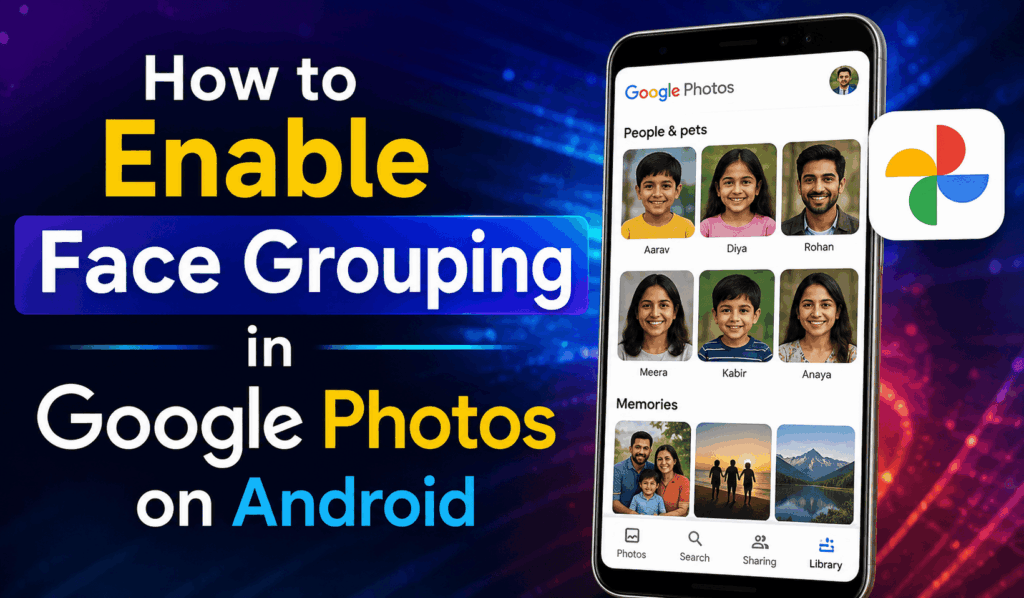

How to Enable Face Grouping in Google Photos on Android
If you want Google Photos auto-organization to do the work for you with your photos, you will need to use the Face Grouping feature. This Feature uses Google’s state-of-the-art AI to recognize like faces of the thousands of them that are possible in your photo collection and to put them in the same group, thus making it easy to go through, organize, and share your memories. Also, if you have a large set of family photos at hand or you want a quick way to look up images of friends.
Read More: How to Stop Android Phone from Google Backup
What is Face Grouping in Google Photos?
Face Grouping is a smart feature in Google Photos. The Face Grouping feature that looks at your collection of photos and sorts which ones have the same people in them. Instead of going through your galleries for hours, just tap a person’s face, and there they are in the photos. First, though, you will have to go into the Google Photos app settings to turn on Face Grouping.
Read More: How to Set Up Hey Google on Android
Steps to Enable Face Grouping in Google Photos on Android
Here are easy steps to enable Face Grouping in Google Photos on Android:
- Open Google Photos.
- Tap the image of your profile picture in the top right.
- Choose Photos settings.
- Go to Preferences.
- Select Group similar faces.
- Enable the Face Groups feature.
Once you enable Face Grouping in Google Photos, the app will go through your photo collection. The time which it takes for the process to complete will depend on your total number of images.
Read More: How to Fix Google Messages Not Working on Android Phones
Benefits of Enabling Face Grouping
When you enable Face Grouping in Google Photos, you get out of that many features:
- Easy to find photos of certain people.
- Organize family and friend groups.
- Improve photo search accuracy.
- Create personalized memories and slideshows.
- Save time with your large photo collections.
These are the reasons that make you want to use the Face Grouping feature in Google Photos, also if you are in the practice of backing up your photos to your Google account.
Why Face Grouping May Not Be Available
Sometimes, enable Face Grouping in Google Photos may be blocked, which is due to:
- In some countries this feature is unavailable.
- You are using an old version of Google Photos.
- Face detection is in progress on your uploaded images.
- Your Google account configuration may affect feature availability.
Updating the application and, in some cases, waiting for photo processing to complete may resolve the issue.
Tips for Better Face Recognition
Once you enable Face Grouping in Google Photos, we have some tips that will improve the results:
- Keep the Google Photos app up to date.
- Backup your photos in the cloud.
- Add names to recognized face groups.
- Use high-resolution photos for best results.
- Allow some time for Google’s AI to process new uploads.
Google Photos algorithms improve at recognizing faces over time.
Conclusion
Choosing to enable Face Grouping in Google Photos on the Android platform is a very easy way to go about your digital archiving. The feature which goes about identifying the same faces in different photos that you have takes care of the sorting for you and also improves the search function. If what you are after are family photos, from a recent trip, or of a group of friends, this feature will put them at your disposal.