

Learn how to Turn On Predictive Back Animations on Android. Also, we will look at the benefits of doing so, which devices it works on, and some troubleshooting tips to improve your Android navigation experience today.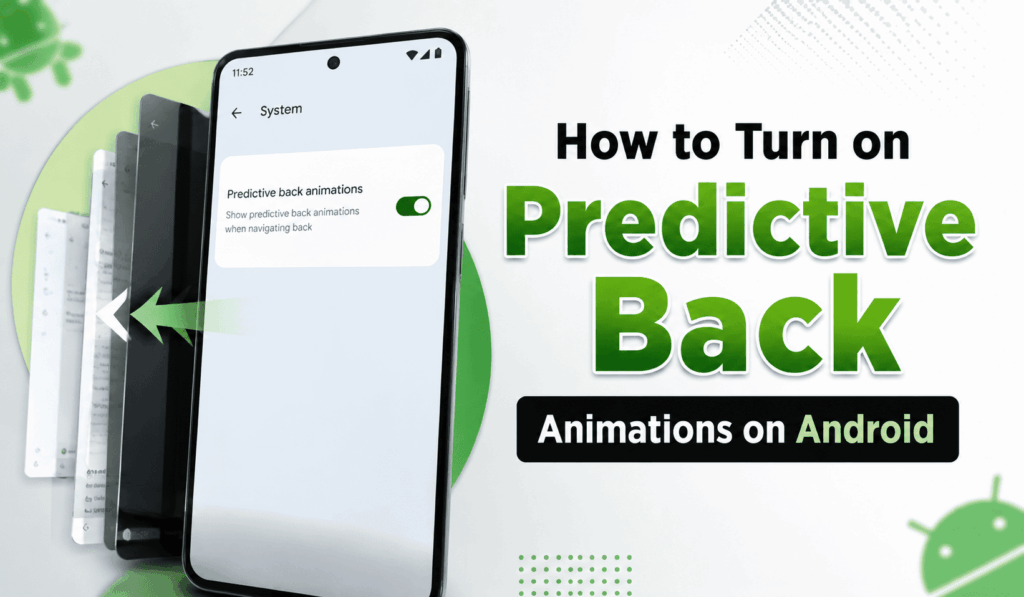

How to Turn on Predictive Back Animations on Android
Android also does a great job of improving the user experience with each update, and in that regard, we have the useful Predictive Back Animations. If you want to Turn On the Predictive Back Animations in your version of Android, this guide will present a step-by-step process with just a few easy steps to complete. For developers looking to test new apps or for Android enthusiasts always looking for the latest features, the ability to Turn On the Predictive Back Animations will make your navigation experience that much smoother and more intuitive.
Read More: How to Remove Animations on Android
Why Should You Turn on Predictive Back Animations?
There are some reasons to Turn On Predictive Back Animations on your Android device:
- Enjoy seamless and quick navigation.
- Preview the destination first before going back.
- Experience modern Android interface improvements.
- Test out your compatibility as an app developer.
- Improve the total user experience with gesture navigation.
When you use Predictive Back Animations, you get a more interactive navigation that is also faster and more natural.
Read More: How to Find Your Android Device Serial Number
Steps to Turn on Predictive Back Animations
Follow these steps to Turn On Predictive Back Animations:
- Open Settings on your Android device.
- Scroll down to it and tap About Phone.
- Tap on the Build Number seven times to enable Developer Options.
- Enter your PIN, if asked.
- Go back to the main Settings.
- Enable Developer Options.
- Scroll to the bottom until you see Predictive Back Animations.
- Turn on the feature for Predictive Back Animations.
- If at any time it is required, perform a hard reset of your device.
Once enabled, supported applications will present the new predictive back gestures as you swipe from the edge of the screen.
Read More: How to Turn On Quick Share on Android
Devices That Support Predictive Back Animations
Not in all cases does this feature work with Android phones. You may turn on the predictive back animations on devices that are running Android 13 or more recent; also, in Android 14, the best results are observed. What we notice is that Google Pixel phones get the new features first, while devices from Samsung, OnePlus, Xiaomi, and other manufacturers get these updates first through software updates.
Troubleshooting Tips
If you are having issues with Predictive Back Animations, try the following solutions:
- Ensure your device is running Android 13 or 14.
- Check that Developer Options are on.
- Update your device to the latest software version.
- After you enable the setting, restart your device.
- Check if your device manufacturer has included support for this feature.
These issues that prevent you from using Predictive Back Animations have been resolved.
Benefits of Turning on Predictive Back Animations
Choosing to enable Predictive Back Animations is a good choice. We see that it improves gesture navigation, gives visual feedback, reduces accidental exits, and also makes the transition between screens smoother. Also reports that we may use the feature to make our apps compatible with Android’s latest navigation system.
As we see in more applications that adopt the Predictive Back feature, users who turn on Predictive Back Animations will see a more consistent and modern Android experience.
Conclusion
If you want to improve your Android’s navigation, try out Turn On Predictive Back Animations. This feature includes smooth transitions, clarifies hand gestures for better understanding, and as a whole improves the user experience. Also, if you have a Pixel device or any other Android phone that is up to date with the latest software, in a few minutes you can Turn On Predictive Back Animations, which in turn will make daily interactions a more fluid and intuitive process.