Learn how to Find Your Android Device Serial Number, which you can do via Settings, the device box, Google account, or ADB.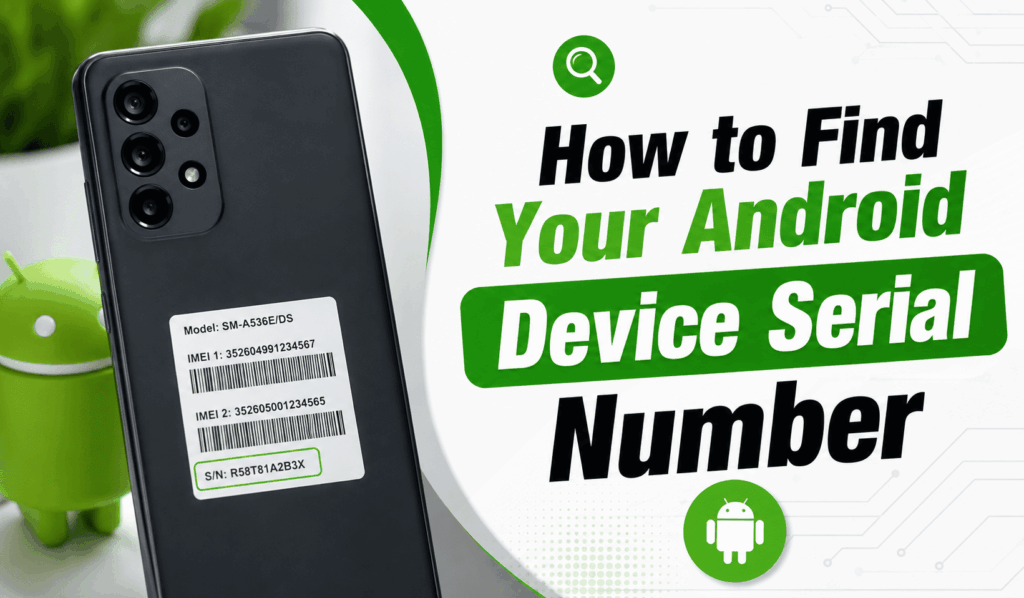
How to Find Your Android Device Serial Number
If you are looking for your Android Device Serial Number, you aren’t alone. Many Android users report that they are trying to claim a warranty, contact customer support, verify the authenticity of their device, or register their smartphone, but can’t find it. The good news is we have a few easy ways for you to go about finding your Android device serial number that don’t require any technical knowledge.
Read More: How to Turn On Quick Share on Android
Steps to Find Your Android Device Serial Number in Settings
Here is a simple way to Find Your Android Device Serial Number via the Settings app.
Follow these simple steps:
- Open up Settings.
- Scroll down and press About Phone or About Device.
- Choose Status or Device Information based on your Android version.
- Find the Serial Number.
This is for most Android smartphones, which include Samsung, Google Pixel, Motorola, OnePlus, Xiaomi, OPPO, Vivo, and also a great many other brands.
Read More: How to Enable Theft Detection Lock on Android
Find Your Android Device Serial Number Using Google Account
Another option that puts it at your disposal is to use your connected Google account to Find Your Android Device Serial Number. If your device is on your account’s list of devices, it may also include key info about that device online. This works well when you do not have physical access to your phone but still require the serial number for support or warranty issues.
Read More: How to Enable Face Grouping in Google Photos on Android
Find Your Android Device Serial Number on the Device Box
If your Android device will not power on, you may still access the Serial Number of your Android device from the original retail box. Most manufacturers include the serial number on a label within the package. You will typically find it near the IMEI number, barcode, and model number.
Keeping your device’s box will save you time when you need to prove ownership or for customer support.
Find Your Android Device Serial Number Using ADB
For advanced users that is a method to Find Your Android Device Serial Number with the use of Android Debug Bridge (ADB). Once you have enabled Developer Options and USB Debugging, connect your phone to a computer and run the appropriate ADB command, which will display the serial number.
Why You Should Find Your Android Device Serial Number
There are a few reasons to Find Your Android Device Serial Number, which are:
- Enrolling your device in the warranty program.
- Authentication of your smartphone.
- Contacting manufacturer support.
- Tracking repair requests.
- Managing enterprise or business devices.
- Maintaining personal records for insurance.
Having easy access to your serial number is also very useful.
Tips to Keep Your Serial Number Safe
After you have located your Android Device Serial Number, put it in a secure place. You may save it in a password manager, write it down in a safe place, or include a digital copy with your purchase receipt. This info may prove useful if your device is lost, stolen, or in need of service.
Conclusion
Learning to Find Your Android Device Serial Number is a skill that all Android users should have. You may access it in your phone’s Settings, your Google account, the original device box, or ADB tools. Where you find your serial number is up to you, but by doing so, you will simplify warranty claims, repairs, and device verification. Also, by spending a few minutes to Find Your Android Device Serial Number and to put it in a secure place, you will be better prepared when you need that important information about your Android device.
Leave a Reply