Learn how to allow apps from unknown sources on android by simple step-by-step guide. Also, we will cover safe installation methods, security tips, and best practices for when to use them when installing APK files from trusted sources.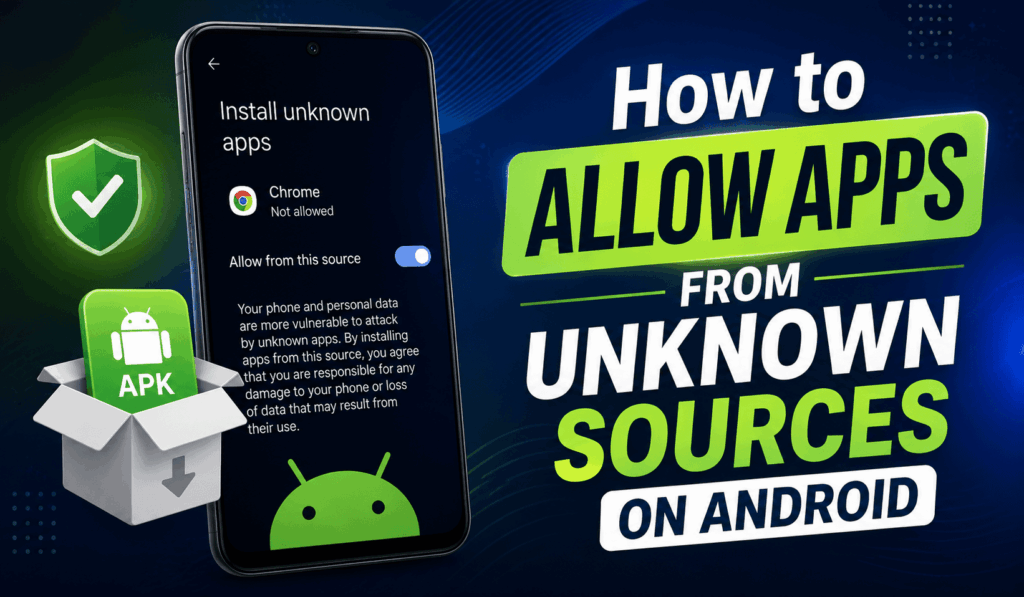
How to Allow Apps from Unknown Sources on Android
Allowing installation of 3rd party apps on Android is a common action for which users turn to besides the Google Play Store. Many developers put their apps on their developer sites, which in turn requires that you Allow Apps from Unknown Sources before you can install them. While this feature does present some flexibility, it is also important to use it with care for the protection of your device and data.
Steps to Allow Apps from Unknown Sources on Android
The procedures to enable Unknown Sources on Android may differ slightly by device manufacturer and Android version, but the basic process is the same.
- Open Settings on your Android.
- Tap into Apps or Security and Privacy.
- Select Special apps Access or Install unknown apps.
- Choose the application you will use for the APK file, for example, your web browser or file manager.
- Turn on Allow from this source.
- Download the APK file from a trusted website.
- Open the downloaded file and go through the installation process.
After performing these steps, you will need to enable Allow Apps from Unknown Sources on the selected application.
Read More: How to Check Total Downloads of Android Apps
Why People Allow Apps from Unknown Sources on Android?
There are many reasons that users choose to Allow Apps from Unknown Sources on Android. We see that some apps are put by developers before they appear in the Play Store. Also, it is the case that some apps do not make it to certain countries or regions. Also, businesses use APK files to get internal applications out to employees without putting them on public app stores.
By opting to use the Unknown Sources option on Android, which is the same as allowing apps from non-official sources, users can get their hands on beta versions of apps, custom builds, and pre-release software that is outside of the normal issue channels.
Read More: How to Auto Update Apps on Android
Safety Tips Before You Allow Apps from Unknown Sources on Android
Although it is simple to allow access from unknown sources on Android, security should be the primary concern. Follow these best practices:
- Download only from official sites that you trust.
- Avoid clicking suspicious download links.
- Scan your APK files with a good mobile security app if possible.
- Read the user reviews and developer info first.
- Keep your Android up to date with the latest security patches.
These measures reduce the risk of getting into modified or infected apps.
Should You Disable the Settings After Installation?
Yes. After you enable installation from unknown sources on Android and download what you need, it is a good idea to go back in and turn that off. By doing so, you reduce the chance of accidental installs and at the same time improve your device’s security. Also, in modern Android versions this permission is given on a per-app basis, which means you can go into the browser or file manager you used and remove access for that app.
Conclusion
Knowing that you can Allow Unknown Apps on Android gives you control which you have over what you install. If you’re getting software from a trusted developer, trying out a beta version, or the app isn’t available on the Play Store, this knowledge is very useful. Also, always get your APK files from proven sources, pay attention to the permissions asked for, and as soon as you don’t need this feature turned on, you can turn it back off. By following these safety steps, you can enjoy the freedom of choice that this option gives you and also keep your Android device secure.
Leave a Reply