Learn how to change mobile data settings on Android, which in turn will improve your internet speed, enable Data Saver, and fix common mobile network issues.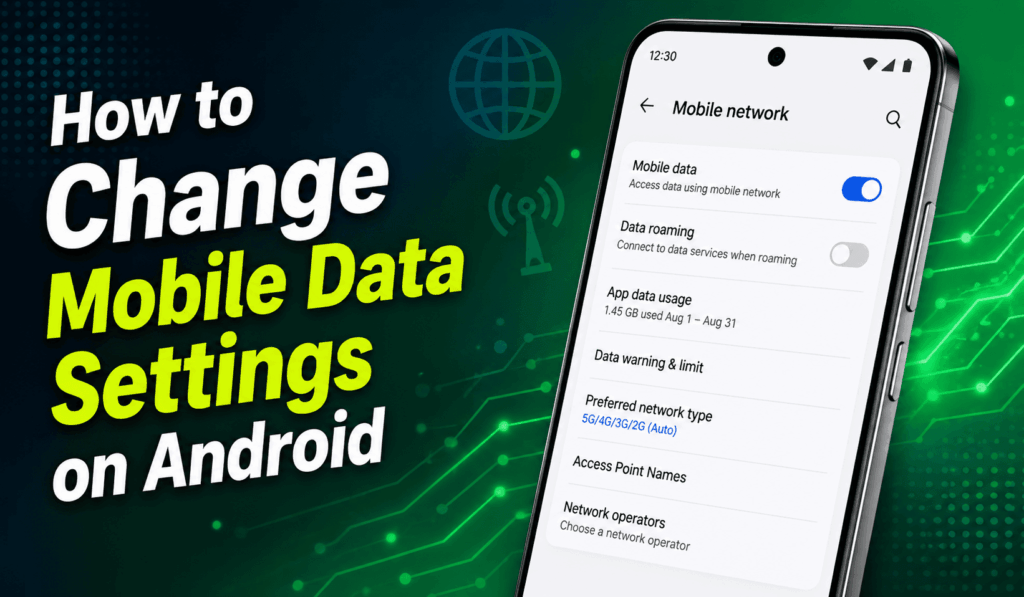
How to Change Mobile Data Settings on Android
Knowing how to Change Mobile Data Settings on Android is a key thing for which to do if you are looking to control your internet use, reduce data usage, and, at the same time, improve your smartphone experience. If what you want is to save mobile data, enable faster network speeds, or you are having issues with connection, learning how to Change Mobile Data Settings on Android will help you stay in touch while also being aware of your data use.
Read More: My Mobile Data is on but Not Working (Android)
Why You Should Change Mobile Data Settings on Android?
There is a large variety of reasons to change Mobile Data Settings on Android. You may wish to set background data use, to switch between 4G and 5G networks, to enable data roaming when you travel, or just to see what your apps are using for mobile data. Also, Android devices put at your disposal a series of built-in settings which make it easy and effective to manage mobile data.
Read More: How to Fix Data Connection Problem in Android Mobile
Steps to Change Mobile Data Settings on Android
Here are the easy steps to change Mobile Data settings on Android:
- Open Settings on your Android.
- Tap on Network, Internet, or Connections as per your device.
- Choose Mobile Network and SIM Cards.
- To turn Mobile Data on or off, use the toggle switch.
- Select the network type that you prefer, for instance 4G LTE or 5G if they are available.
- Adjust settings such as Data Roaming, Preferred Network, or Access Point Names (APN) as required.
These may be different for your Android version and smartphone manufacturer.
Read More: How to Cancel T Mobile Internet
How to Reduce Data Usage
Once you change Mobile Data Settings on Android, you can also reduce unnecessary data use by enabling certain features.
- Turn on Data Saver mode.
- Reduce background data for apps you don’t use.
- Download updates only over Wi-Fi.
- Turn off media sharing in apps.
- Set a monthly mobile data alert or cap.
These features will help you to avoid unexpected data charges and also extend your monthly data plan.
Troubleshooting Mobile Data Problems
After changing mobile data settings on Android, if your data goes out of service, try these solutions:
- Restart your Android device.
- Turn Airplane Mode on and off.
- Check whether Mobile Data is enabled.
- Reset your network settings.
- Update your Android software.
- Check your APN settings with your mobile carrier.
- Remove and reinsert your SIM card.
Most connection problems can be solved with these simple troubleshooting steps.
Benefits of Changing Mobile Data Settings
When you adjust your Mobile Data Settings on Android, you take control of your smartphone. Proper settings will see an improvement in your internet speed, a drop in battery consumption, see less of that annoying background use, and also may put you within your data limit. Also, for those who regularly check in on and tweak their mobile data settings, we see a smoother and more reliable browsing experience.
Conclusion
Learning to Change Mobile Data Settings on Android is a skill which all Android users should know. As you aim to save mobile data, improve network performance, or fix internet connection issues, Android has all the tools you need in its settings menu. By going over and updating your mobile data preferences regularly, you may see great improvement in your device’s performance and also avoid unexpected data charges. Taking a few minutes out of your day to Change Mobile Data Settings on Android will noticeably improve your smartphone experience.
Leave a Reply