Learn how to create a calling card on Android. We will cover easy steps to follow, the best business card-making apps, how to add QR codes, and professional tips to achieve a polished look.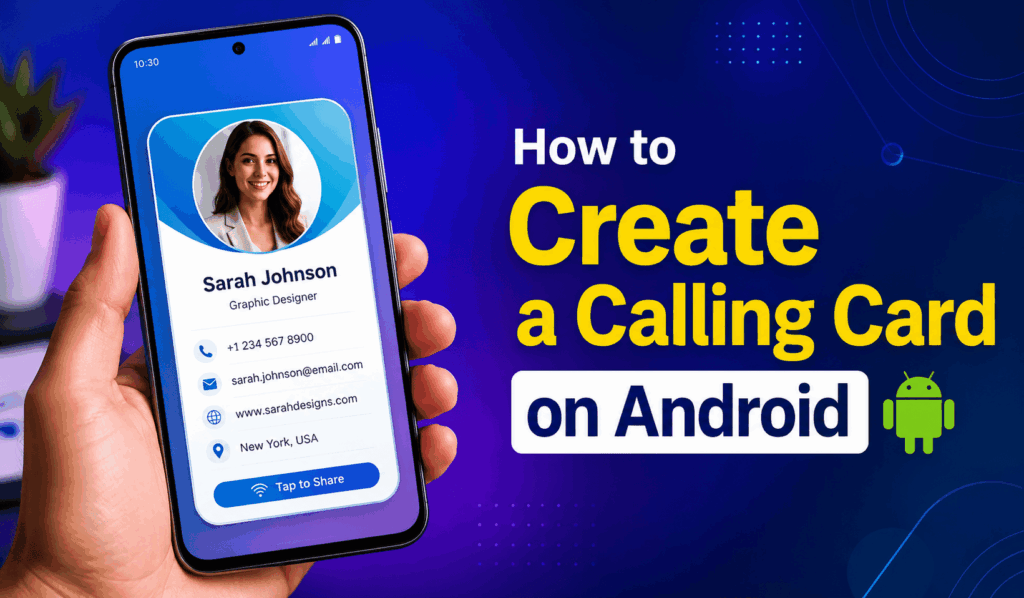
How to Create a Calling Card on Android
In the present age of digital everything which apps and tools at your fingertips, it is to your advantage to know how to create a Calling Card on Android, which in turn will allow you to put your contact info quickly. Whether you are a business owner, freelancer, student, or professional, by creating a calling card on Android device, you can make a strong first impression. What you may not realize is that Android smartphones bring to the table many easy options for you to design, customize, and share digital calling cards, which do not require advanced technical skills.
Read More: How to Set Up Hey Google on Android
Why Create a Calling Card on Android?
When you set up a Digital Business Card on Android, you can add your name, phone number, email, company info, and social media links in a digital format. Also, unlike physical cards you used to hand out, digital business cards are a breeze to update and can be shared right away via messengers, email, QR codes, or Bluetooth.
Many of our Android users opt for digital calling cards, which we see as a trend for its eco-friendly, economic, and convenient features. Also, on how to create a calling card on Android, which in turn improves your network and allows you to stay in touch with clients, colleagues, and friends.
Read More: Top 10 Best Messaging App for Android
Steps to Create a Calling Card on Android
Creating a walk-through for your Android calling card is easy. Try this out:
- Open the Contacts app on your Android device.
- Create and update your personal contact info.
- Add your details, which include name, phone number, email, website, and address.
- Upload a professional profile picture.
- Save your contact information.
- Use the Digital Share of your contact to send in.
Another which is very popular for Create a Calling Card on Android is via the use of business card maker apps, which are available on the Google Play Store. These apps include templates, design tools, and QR codes for a more professional look.
Read More: How to Make Free WiFi Calls on Android
Best Apps to Create a Calling Card on Android
Many applications that function on the Android platform have easy access to create a calling card. Popular choices are business card makers, digital card creators, and contact sharing apps. These tools also allow users to put in their own colors, fonts, logos, and layout, which in turn reflects their personal or business brand.
Most call card apps also have a QR code feature, which in turn allows recipients to save your info right away via scan with their smartphones.
Benefits of Creating a Calling Card on Android
When you set up a calling card on Android, you also get to benefit from several advantages:
- Quick and easy contact sharing
- Professional networking opportunities
- Reduced printing costs
- Eco-friendly alternative to paper cards
- Easy updates and modifications
- Convenient storage and accessibility
A digital business card, which also serves as a virtual version of the traditional calling card, is what you need to present a professional image and, at the same time, be sure your info is current.
Conclusion
Learning to develop a digital business card on Android is a great skill for those who want to better their communication and networking. With the built-in Android features and special apps, creating a professional digital calling card only takes a few minutes. For either personal or business use, a digital calling card provides convenience, flexibility, and a professional means to put out your info.
Leave a Reply