Learn how to manage Connected Apps in Google settings to review permissions, remove unused apps, protect your privacy, and keep your Google account secure with this easy guide.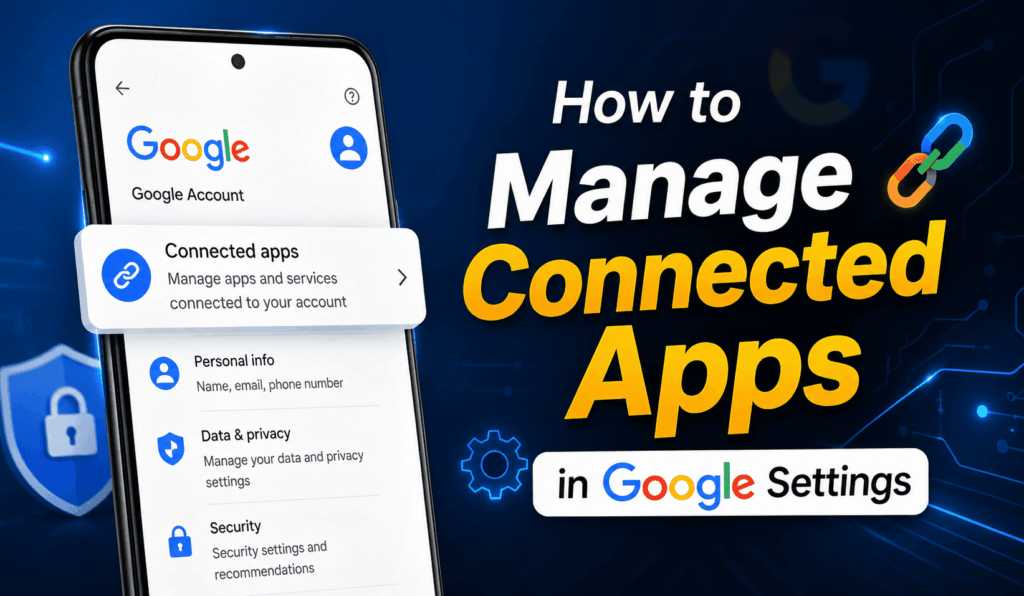
How to Manage Connected Apps in Google Settings
If you use your Google account to sign in to websites and mobile apps, it is important to periodically know how to Manage Connected Apps in Google settings. People usually connect some external apps to their Google accounts and ignore them. They may continue to access their private information on an ongoing basis. Therefore, it is critical to Manage Connected Apps in Google because it facilitates better account privacy and security.
Read More: How to Protect Apps on Android
What Are Connected Apps in Google?
Apps that are connected to your Google account are external sites, games, and mobile applications that you allow to access your information. For instance, you may link external services using the ‘Sign in with Google’ option. Accordingly, all of them have access to particular data on your Google account. Some examples may include your personal info, email address, profile photo, and Google Drive.
Read More: How to Block Downloading Apps on Android
Why You Should Manage Connected Apps in Google
There are many reasons why you need to Manage Connected Apps in Google settings, and some of them are described below:
- Ensure Google account security.
- Remove all apps that you do not use.
- Secure your personal information.
- Prevent other people from spying on your account.
- Keep your account updated.
When you manage Connected Apps in Google, you will have full control over the applications that have access to your data.
Read More: How to Allow Apps from Unknown Sources on Android
Steps to Manage Connected Apps in Google Settings
There are several simple steps you need to follow to manage Connected Apps in Google:
- Open your Google account.
- Then open account settings.
- Under the Security tab, scroll down to Your connections to third-party apps and services.
- Click See all connections.
- Look through the list of your connected apps.
- View details for any app you are suspicious about.
- Remove those apps you no longer need or trust.
Accordingly, those are the steps of how to Manage Connected Apps in Google settings.
Read More: How to Check Total Downloads of Android Apps
Benefits of Managing Connected Apps
When you periodically Manage Connected Apps in Google settings, you benefit from:
- Better security.
- More control over your data.
- Removal of all unnecessary apps.
- Better privacy for your account.
- Cleaner and safer list of external services.
Experts recommend double-checking your Google connections every once in a while to make sure everything is secure.
Best Practices to Manage Connected Apps in Google
In this part, you will find the best practices for managing connected apps in Google settings. They will help you stay secure and update your account regularly:
- Double-check all connected services.
- Periodically remove those apps you no longer use.
- Only connect to trusted and secure sites.
- Make sure you know what access you give to external services.
- Use two-step verification.
- Avoid connecting to all available sites.
Those are the best practices to keep your Google account secured by Managing Connected Apps in Google settings.
Conclusion
Every Google user must know how to Manage Connected Apps in Google settings because it increases your overall account security. Managing connected apps is important because you give third parties access to your personal information. However, all those apps are useful when you do not suspect them of spying on you and using your data for their own sake. It is critical to check which external services you use to increase your account security.
Leave a Reply