Learn how to change TalkBack settings on Android. We go over speech options, gesture settings, verbosity, and accessibility features to make your experience better and more personal.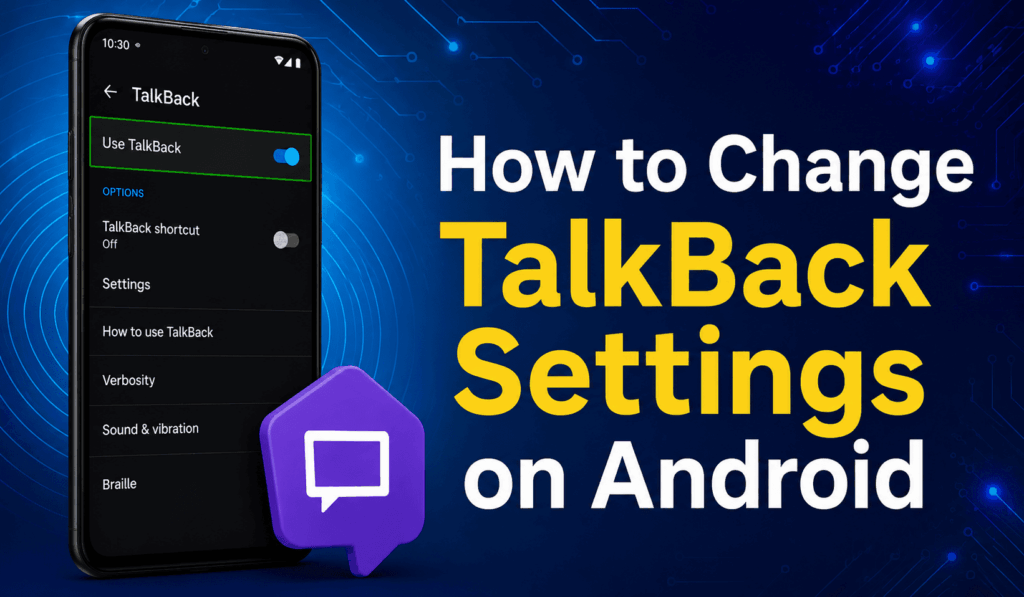
How to Change TalkBack Settings on Android
TalkBack in Android allows users to tailor the accessibility experience to what they need. TalkBack is an in-built screen reader for people with visual impairments, which also includes features for interaction via voice feedback and gesture. If you are looking to improve navigation, change speech settings, or turn off certain features, getting to know TalkBack Settings on Android will make your smartphone a more comfortable and improved tool for you.
Read More: How to Change Your Android Keyboard
How to Access TalkBack Settings on Android
Changing the TalkBack settings on Android is easy. Here’s how:
- Open Settings on your Android device.
- Scroll down and tap Accessibility.
- Choose TalkBack.
- Tap into TalkBack Settings, which has all the customization options.
Depending on which Android version you are running and which device manufacturer you have, the structure of the menu may be a little different, but in general, to find TalkBack Settings, you look for the Accessibility option.
Read More: How to Stop Android Phone from Google Backup
Customize TalkBack Settings on Android
In Android, there are also many options in TalkBack Settings.
- Speech Rate: Adjust the speed of spoken feedback.
- Voice Pitch: Change the pitch of the TalkBack voice.
- Verbosity: Set what info TalkBack reads out.
- Gesture Settings: Personalize your swipe and tap actions for smoother navigation.
- Audio Ducking: Reduce media volume when TalkBack is on.
- Keyboard Echo: Change how characters and words are spoken as you type.
These Android TalkBack settings improve access and also provide a better user experience.
Read More: How to Create a Cloned App on Android
How to Enable or Disable TalkBack
If you wish to turn on or off the feature, go to the TalkBack Settings on Android and use the TalkBack toggle switch. Also, on many Android devices, you may press the volume keys for a couple of seconds to turn TalkBack on or off right after you have enabled the accessibility shortcut.
Tips for Using TalkBack Settings on Android
To improve your experience with TalkBack Settings on Android, try these tips:
- Set the pace of speech to what is comfortable.
- Practice the TalkBack gestures for smoother navigation.
- Add audio ducking for better voice feedback.
- Adjust the level of detail of announcements.
- Check out the in-depth features of gestures and keyboard controls.
Reviewing TalkBack Settings regularly keeps your device easy to use as your preferences change.
Common Issues with TalkBack Settings on Android
Sometimes, users have issues with TalkBack Settings on Android, including gestures not responding and speech output that is too fast. We recommend that you reboot your device, update Android, or reset TalkBack preferences, which may resolve these issues. Should the problems persist, we advise you to look for system updates or to turn to your device manufacturer’s support resources.
Conclusion
In Android’s TalkBack Settings, users are able to fully tailor their Android accessibility experience. From the pitch of the voice to the type of gestures used and what kind of speech feedback is delivered, TalkBack Settings on Android present a great array of features that, in turn, improve device usability. At whatever stage of your TalkBack journey you are in, from new to old user, taking the time to look into what TalkBack Settings has to offer will make your daily smartphone tasks not only more efficient but also accessible and more enjoyable.
Leave a Reply