Learn how to turn off Wi-Fi scanning on Android through easy step-by-step guides. Improve your privacy, reduce background activity, and manage location settings.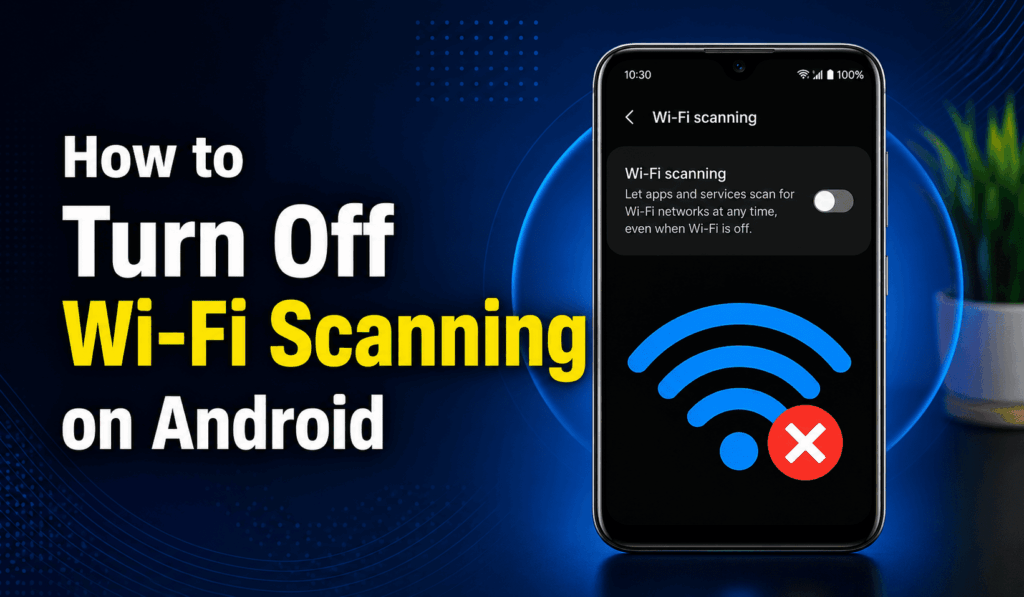
How to Turn Off Wi-Fi Scanning on Android
Wi-Fi scanning is a feature of Android that allows your phone to see what Wi Fi networks are in proximity to you even when Wi Fi is off. While this feature improves location accuracy, some users will instead prefer to turn it off for more privacy or less background activity. If you wish to turn off Wi-Fi Scanning on Android.
Read More: How to Make Free WiFi Calls on Android
What is Wi-Fi Scanning on Android?
Wi-Fi scanning on your Android smartphone means it is looking for nearby wireless networks. Also, Android may use data from these nearby Wi-Fi networks to enhance your location services and provide more precise location results. This is because Wi-Fi is able to run in the background even when the main Wi-Fi switch is turned off. If you do not wish for your device to do these background scans, you are able to go to the Location settings on Android and Turn Off Wi-Fi Scanning.
Read More: How to Enable Auto Switch to Mobile Data on Android
Steps to Turn Off Wi-Fi Scanning on Android
Follow these steps to turn off Wi-Fi scanning on Android:
- Open Settings on your Android.
- Scroll down to find Location.
- Find Settings related to Location Services and Location Accuracy.
- Find Wi-fi Scanning.
- Tap and press the toggle for Wi-Fi scanning to turn it off.
The exact menu options may vary by your phone’s manufacturer and which version of Android you have.
Read More: How to Change Mobile Data Settings on Android
How to Find Wi-Fi Scanning Quickly
If you are unable to find the Wi-Fi scanning option, open the search feature within your Android settings. Go to Settings and tap the search icon or search bar that is present. Type in Wi-Fi scanning and choose the appropriate setting that comes up. This is a simple way to Turn Off Wi-Fi Scanning on Android because Samsung, Google Pixel, OnePlus, Xiaomi, and other Android devices have their settings differently.
Why Turn off Wi-Fi Scanning on Android?
There are several reasons that someone wants to turn off wifi scanning on Android.
Improve Privacy
Disabling Wi-Fi scanning gives you control of what your phone searches for in terms of nearby wireless networks. Some users do so for privacy issues.
Reduce Background Activity
Wi-Fi scanning is what the phone does at regular intervals in search of nearby networks. While the power use is usually low, turning off what you don’t need will reduce some background action.
Change Location Settings
Android has the ability to use nearby Wi-Fi networks for determining location. If you don’t require this extra location feature, you can turn off Wi-Fi scanning on Android in the Location settings.
Does Turning off Wi-Fi Scanning Disable Wi-Fi?
No. When you disable Wi-Fi Scanning on Android, it is only that background scanning which is turned off. Your regular Wi-Fi connection is not affected. You may turn Wi-Fi on, connect to wireless networks, go online, and use apps as you usually do.
What Happens After You Turn off Wi-Fi Scanning?
After you turn off Wi-Fi Scanning on Android, your phone will not use this feature when Wi-Fi is off. But at the same time, this may slightly reduce the accuracy of the location in some cases because nearby wireless networks play a role in location detection.
Conclusion
Learning to turn off Wi-Fi scanning on Android is a simple task that, in turn, gives you more control of your phone’s location and connectivity features. Go to Settings > Location > Location Services or Location Accuracy > Wi-Fi scanning and turn the feature off. Also, due to the variation of settings between devices, we have the option to use the Settings search bar for Wi-Fi scanning, which is also a quick solution.
Leave a Reply