Learn how to change address bar position in Chrome on Android from top to bottom or reverse that with easy browser settings or the touch-and-hold option.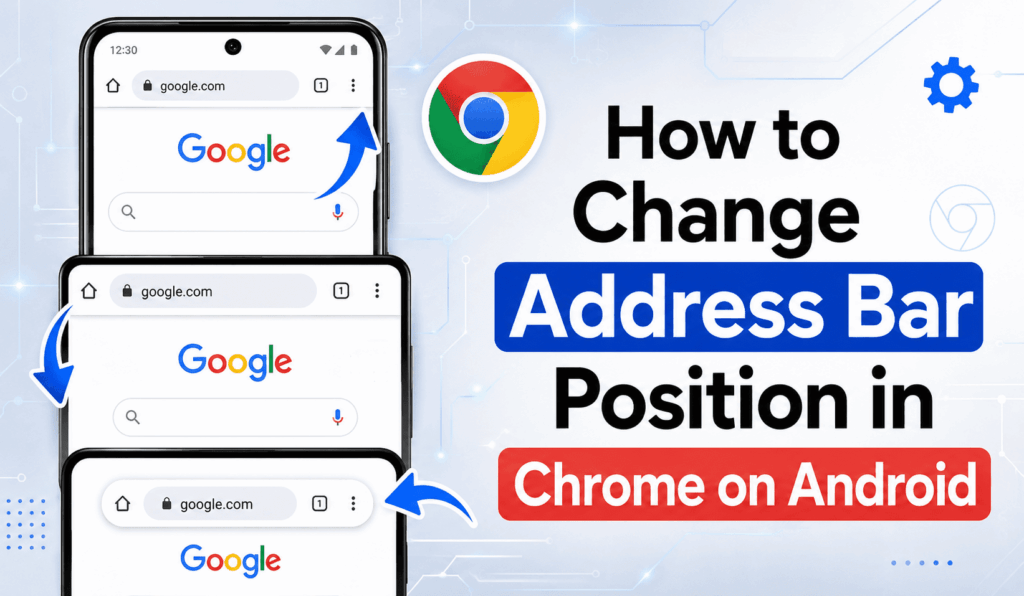
How to Change Address Bar Position in Chrome on Android
If you wish to change the position of the address bar in Chrome on your Android phone, you may also want to know that you can move it from the top of the screen to the bottom or back to the top. This feature also helps improve the experience of browsing, particularly on large-screen smartphones. Google, on its mobile platform, allows Android users to change the address bar position in Chrome, which is right within the browser settings.
Read More: Top 10 Best Chrome Mobile Extensions
Why Change Address Bar Position in Chrome?
By default, the address bar is at the top of the screen. But reaching that top from a large phone with one hand is not always easy. We put the address bar at the bottom, which in turn makes it easier to search, enter web addresses, refresh pages, and access Chrome features.
Read More: How to Run Android Apps on your Chromebook
Steps to Change Address Bar Position in Chrome
Here are the simple steps to change address bar position in Chrome:
- Open the Chrome app on your Android device.
- Click the three-dot More option in the top right.
- Choose Settings.
- Click on the Address bar.
- You will have choices between Top and Bottom.
- Select Bottom to put the address bar at the bottom of the screen.
- Select the top, which will return the address bar to its original position.
In Google Chrome, you also have a quick solution for changing the address bar position. Just touch and hold the address bar, which will in turn present you with a menu to choose from options like Move address bar to the bottom or Move address bar to the top.
Read More: How to Turn off Suggested Articles on Chrome Android
Can You Change the Address Bar Back to the Top?
Yes. If you change the position of the Address Bar in Chrome to the bottom and then decide you prefer the default layout, you can easily revert. Touch and hold the address bar and drag it to the top. Also, go to Chrome’s menu at the top right, which is More, and from there go to Settings, and then what is presented is the Address bar option set to go to Top. This allows you to change Address Bar Position in Chrome as you like.
Read More: How to Check Total Downloads of Android Apps
Things to Know About the Address Bar Position
In portrait mode, the address bar position may be customized. When your Android device is in landscape mode, Chrome puts the address bar at the top of the screen. If you have Chrome settings sync turned on, your choice of address bar position may also sync across your Android devices. Your favorite layout may automatically be applied when you use Chrome on another Android device.
Conclusion
Knowing how to change address bar position in Chrome gives you full control of your mobile browsing experience. If you like the address bar at the top for a classic look or at the bottom for more convenient one-handed use, that is up to you. In either case, Chrome makes it easy. Go to Settings > Address bar and choose Top or Bottom, or you can also just hold and touch the address bar for a quick option.
Leave a Reply