Learn how to turn off App Usage Access on Android, manage which permissions apps have, protect your privacy, and turn off usage access for specific apps.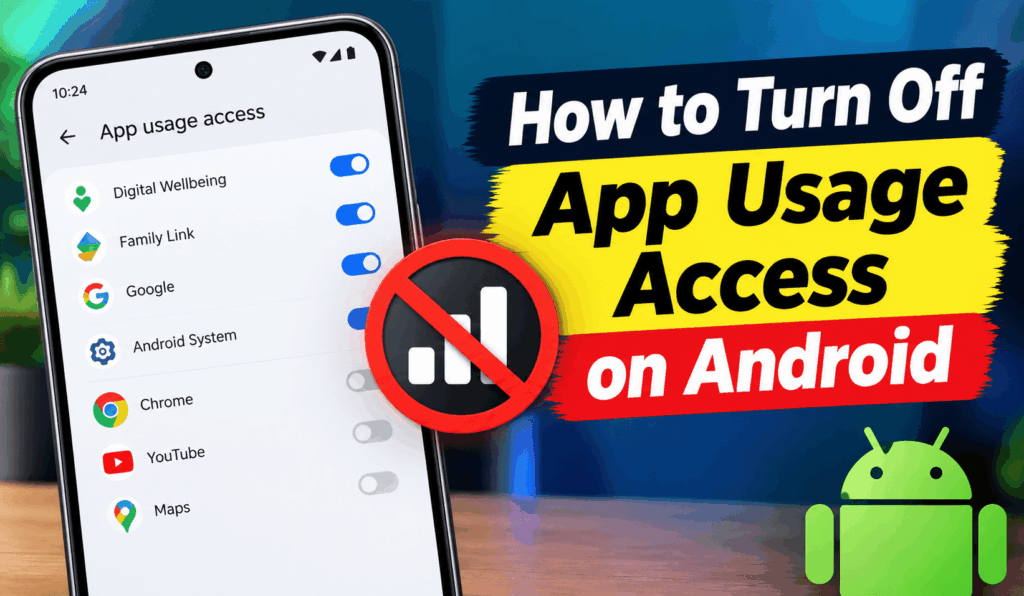
How to Turn Off App Usage Access on Android
If you want better privacy control, you may want to learn how to turn off App Usage Access on Android. App Usage Access is a permission that some applications have to see into other apps’ use and how often you use them. While some applications require this permission for their functions, at other times you may choose to remove that access.
Read More: How to Manage Connected Apps in Google Settings
What is App Usage Access on Android?
Before you turn off App Usage Access on Android, we should see what this permission does. App Usage Access is what allows an app to collect info on your app activity. What that info is may vary by Android version and by app, but generally includes which apps are used, how often they are opened, and how long they are active. Android has a dedicated section for this in settings, which you can use to manage it. You go in to see which apps are granted Usage Access and also have the option to turn it off at any time.
Read More: How to Protect Apps on Android
Steps to Turn Off App Usage Access on Android
The exact names of the menus may vary based on your Android device, manufacturer, and Android version. But the general process is the same.
Read More: How to Auto Update Apps on Android
- Open Settings on your Android.
- Scroll down to choose Apps or Apps & notifications.
- Look for Special app access and tap it.
- Select Usage access or apps with usage access.
- You will see a list of apps that have this permission.
- Tap the app that you wish to Turn Off App Usage Access on Android.
- Find the Permit usage access option.
- Turn the toggle off.
Once the toggle is turned off, that particular app will not have Usage Access.
Read More: How to Block Downloading Apps on Android
Why Turn Off App Usage Access on Android?
There are several reasons why users turn off App Usage Access on Android. Privacy is the primary reason. If an app doesn’t require info on your app activity, by removing its permission, you can have greater control over your device data. You may also want to Disable App Usage access on Android if you don’t use a certain app, if it requests too much info, or if you want to reduce the amount of info available to third-party apps.
Read More: How to Allow Apps from Unknown Sources on Android
What Happens After You Turn Off App Usage Access?
When you go to Turn Off App Usage Access on Android, that may disable features that use that info. For example, some productivity, parental control, digital health, automation, or monitoring apps may break without Usage Access. If you notice a key feature is broken after turning off App Usage Access on Android, you can go back in and re-enable the permission.
Read More: How to Check Total Downloads of Android Apps
Conclusion
Knowing how to turn off app usage access on Android, the process is simple: go to Settings, find Special App Access, choose Usage Access, pick the relevant application, and turn it off. Due to the fact that Android settings may differ between manufacturers, the exact menu names will vary. Also, if you are unable to find Usage Access, try the Settings search bar and input “Usage Access” to quickly find the right option.
Leave a Reply