Learn how to turn on USB tethering on Android and share your phone’s mobile internet via a USB cable. We’ll go through the process step by step and also provide some tips for troubleshooting.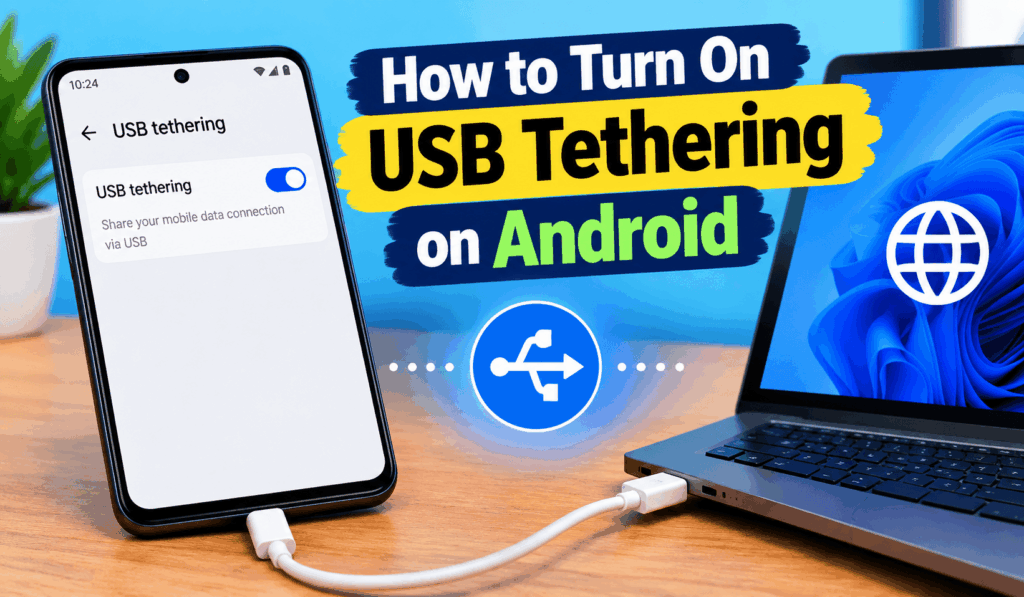
How to Turn on USB Tethering on Android
To share your Android phone’s mobile internet with a computer, laptop, or another compatible device, you can Turn On USB Tethering on Android settings. USB tethering which in turn provides Internet access via a USB cable. Also used when there is no Wi-Fi available or for a more stable connection.
Read More: How to Use Quick Settings Developer Tiles in Android
What is USB Tethering on Android?
USB tethering is a service that many Android smartphones come with that allows you to share your mobile data with another device via a USB cable. When you turn on USB tethering on Android, you may connect a computer to your phone’s mobile internet. USB, which in turn can also be used to use a mobile hotspot, but in a different way the connection here is established through the USB cable.
Read More: How to Find Your Android Device Serial Number
Steps to Turn on USB Tethering on Android
Before you enable USB Tethering on Android, check that your phone has mobile data turned on and that you have a compatible USB cable.
Follow these steps:
- Connect your Android device to your computer with a USB cable.
- Open Settings on your Android.
- Tap on Network & internet, Connections, or a similar option, which may be named differently based on your Android version and phone manufacturer.
- Check for Hotspot and Tethering, Mobile Hotspot, or a similar option.
- Connect with USB.
- Enable USB tethering.
Once you turn on USB Tethering on Android, your computer will recognize the phone as a network connection. It may take a few seconds for the connection to go live.
Read More: How to Check Battery Health on Android
If USB Tethering is Not Available
Sometimes the USB tethering option may be out of use. If that is the case, first check that your phone is connected to the computer via the USB cable. Try reinserting the cable or use a different USB port. Also, see to it that mobile data is on. For USB tethering to work, you will need a live mobile data connection. Also, some carriers are known to put in restrictions or charge extra for tethering, so check your mobile plan issues if that is the case. Rebooting your Android device and computer also helps to resolve temporary connection issues.
Read More: What is Android Desktop Mode and How to Use
Turn Off USB Tethering on Android
As soon as you no longer have a need to share your mobile internet, turn off USB tethering from settings, in which you will see an option to toggle USB tethering off. Once that is done, you may unplug the USB cable.
Conclusion
Learning to turn on USB Tethering on Android is an easy way to share your phone’s internet with a computer. Plug in your phone with a USB cable, go to the tethering settings, and turn on USB tethering. As Android menus vary by manufacturer and OS version, the exact options may differ. If the connection doesn’t work, check your mobile data, the quality of the USB cable, your computer’s USB port, and your mobile carrier plan.
Leave a Reply